Adding Images to Report Templates
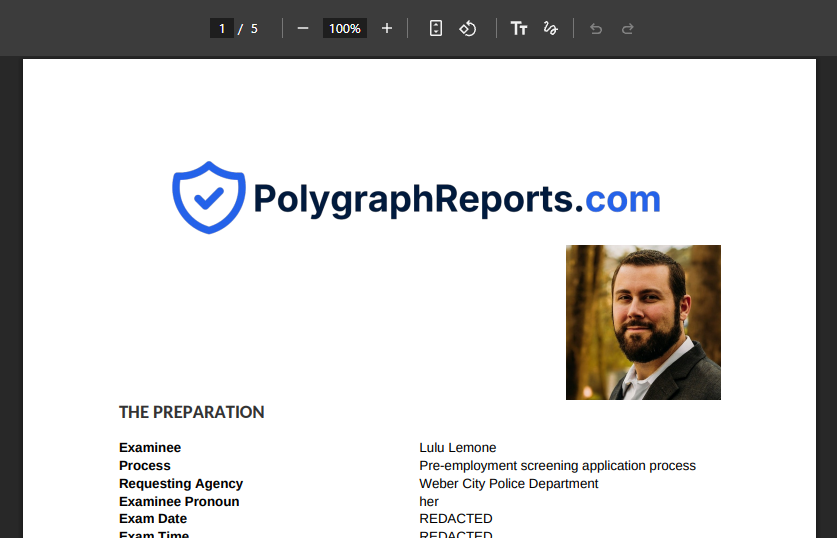
You can include photos and other images in your downloaded reports by defining an image variable on the report template, placing a placeholder picture in the Word file, then uploading the image when you complete each report.
1. Add an image report variable
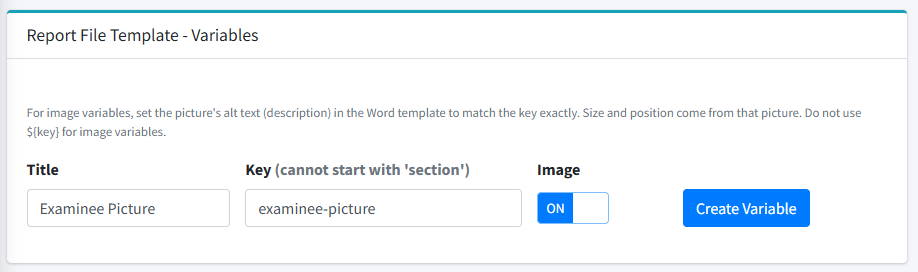
From the report templates page, select the report template you want to edit. On the report template page, open the Report File Template - Variables section. Enter a title and a key for the variable, turn the Image toggle ON, then click Create Variable.
The key cannot start with section. You will use this key again as the alt text on the placeholder image in Word, so choose something clear (for example, examinee-picture).
2. Download the template and add a placeholder image
Click Download File Template to get the current .docx file. Open it in Microsoft Word (or another Word-compatible editor).
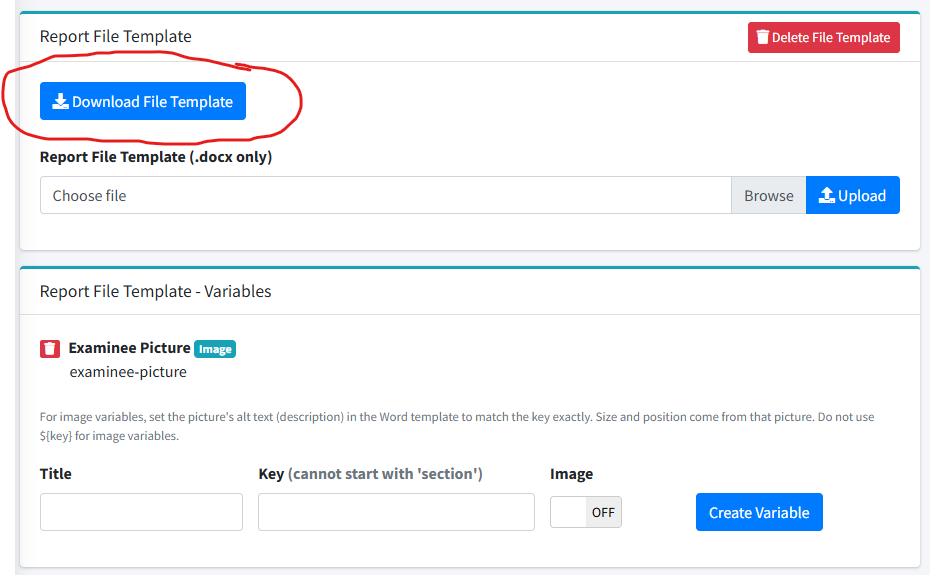
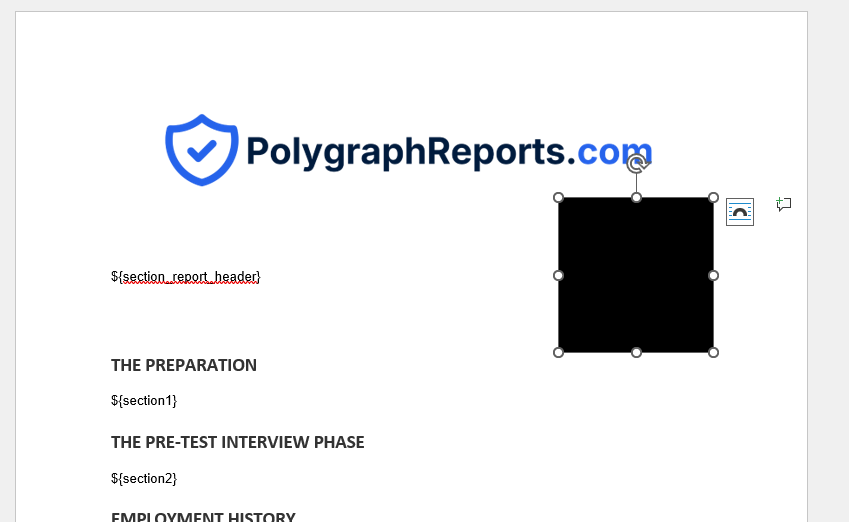
Insert a placeholder image where you want the photo to appear. Size it to match the dimensions you expect for future report images—the size and position of this placeholder control how the real image appears in the finished report. A solid-color square works fine as a stand-in.
Do not use ${key} syntax for image variables. Images are matched by alt text, not by text placeholders.
3. Set the alt text to match the variable key
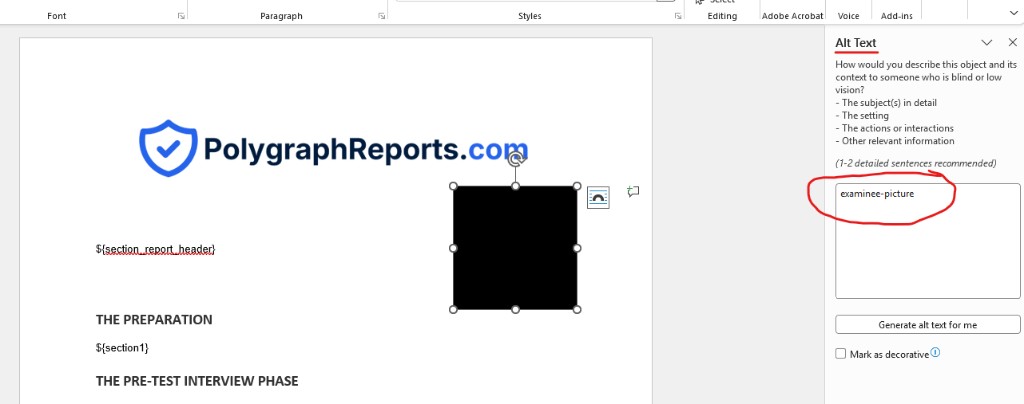
Select the placeholder image and open Alt Text (in Word, this is usually under the Picture Format or Accessibility options; you can also right click the image and select View Alt Text). In the description field, enter the report variable key exactly—same spelling, capitalization, and hyphens.
For example, if the variable key is examinee-picture, the alt text must be examinee-picture. Any mismatch means the uploaded image will not replace the placeholder when the report is generated.
4. (Recommended) Set layout to In Front of Text
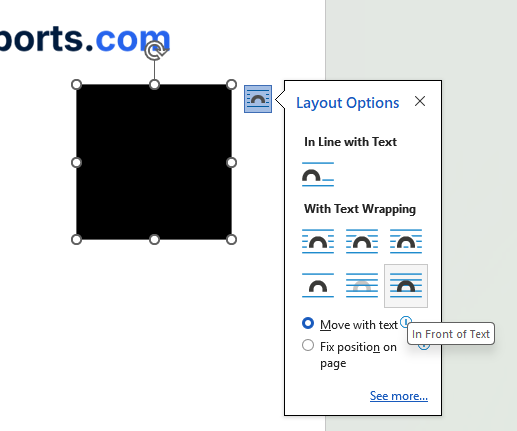
With the placeholder selected, open Layout Options and choose In Front of Text under With Text Wrapping. This lets you drag the image independently of the surrounding text, which is useful for logos, examinee photos, and other images you want positioned freely on the page.
This setting is recommended but not required. Inline or other wrapping options still work if that better fits your template layout.
5. Save and upload the template
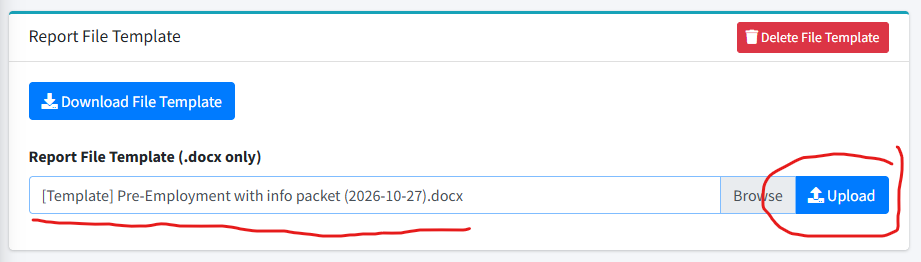
Save the .docx file, then return to the report template page. Choose the updated file and click Upload to replace the template on PolygraphReports.com.
6. Add the image on each report
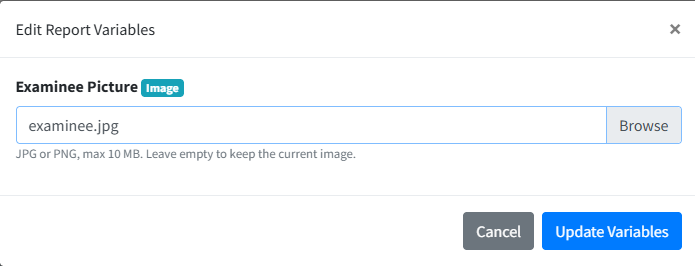
When you create or edit a report that uses this template, find the Report Variables section and click Edit.

For the image variable, browse to a JPG or PNG (max 10 MB), then click Update Variables.
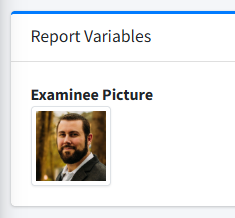
The report page shows a thumbnail once the image is saved.
When you download the report, the placeholder is replaced with your uploaded image at the size and position you set in the template.
Tips
- Size the placeholder to the final look you want. Uploaded images are fitted to that placeholder's dimensions and position.
- Alt text must match the variable key exactly. Extra spaces or different capitalization will prevent the image from merging.
- Image variables do not use
${key}text markers—only alt text on the picture. - Supported uploads are JPG or PNG, up to 10 MB per image.